Backup
RustGrid's own backup format is .rgbak: a single file with the schema and the rows, stored as compressed chunks with a JSON manifest.
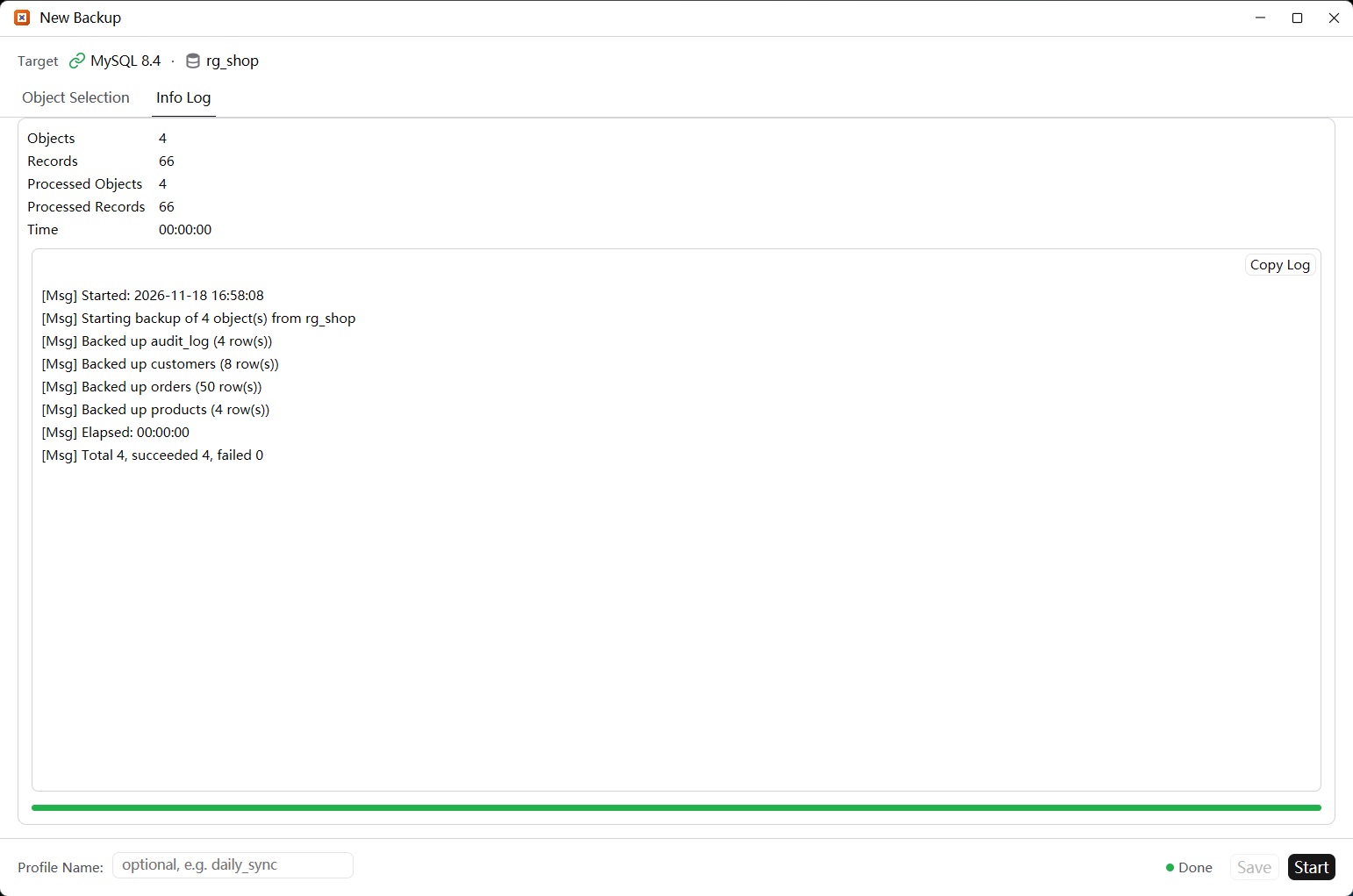
Create a backup
- Select a database and open the Backups main tab.
- Click New Backup. The window targets that connection and database.
- On Object Selection, tick the tables and views to include. Select All / Deselect All speed up large schemas.
- Give the configuration a name if you want to reuse the same selection, then click Start.
The Info Log tab shows object and record counts, live messages, elapsed time and the final success/failure totals. The progress bar turns green when the run completes.
Restore and extract
- Restore Backup writes the selected backup back to the chosen database.
- Extract SQL turns a backup into a readable script, useful for review or for moving data through another tool.
- A saved configuration keeps the target and object selection; reopen it from the backup list to run the same job again.
The backup list
- Each backup is listed with its name, modification date, file size and note. Click a header to sort.
F2renames a backup, the toolbar deletes it after confirmation, and copying/pasting moves a backup file.- Backups are kept per database in the RustGrid configuration directory.
Notes
- Backup and restore cover MySQL/MariaDB, PostgreSQL, SQL Server, Oracle and SQLite. ClickHouse, Redis and MongoDB do not offer
.rgbakbackup in this version. - Take a backup before Sync, a large import, or a destructive table change. The file contains both structure and data, so it restores on another machine and across versions of the same engine.