Tables
The table page is a paged data grid with in-place editing. It is the main place to inspect and change rows.
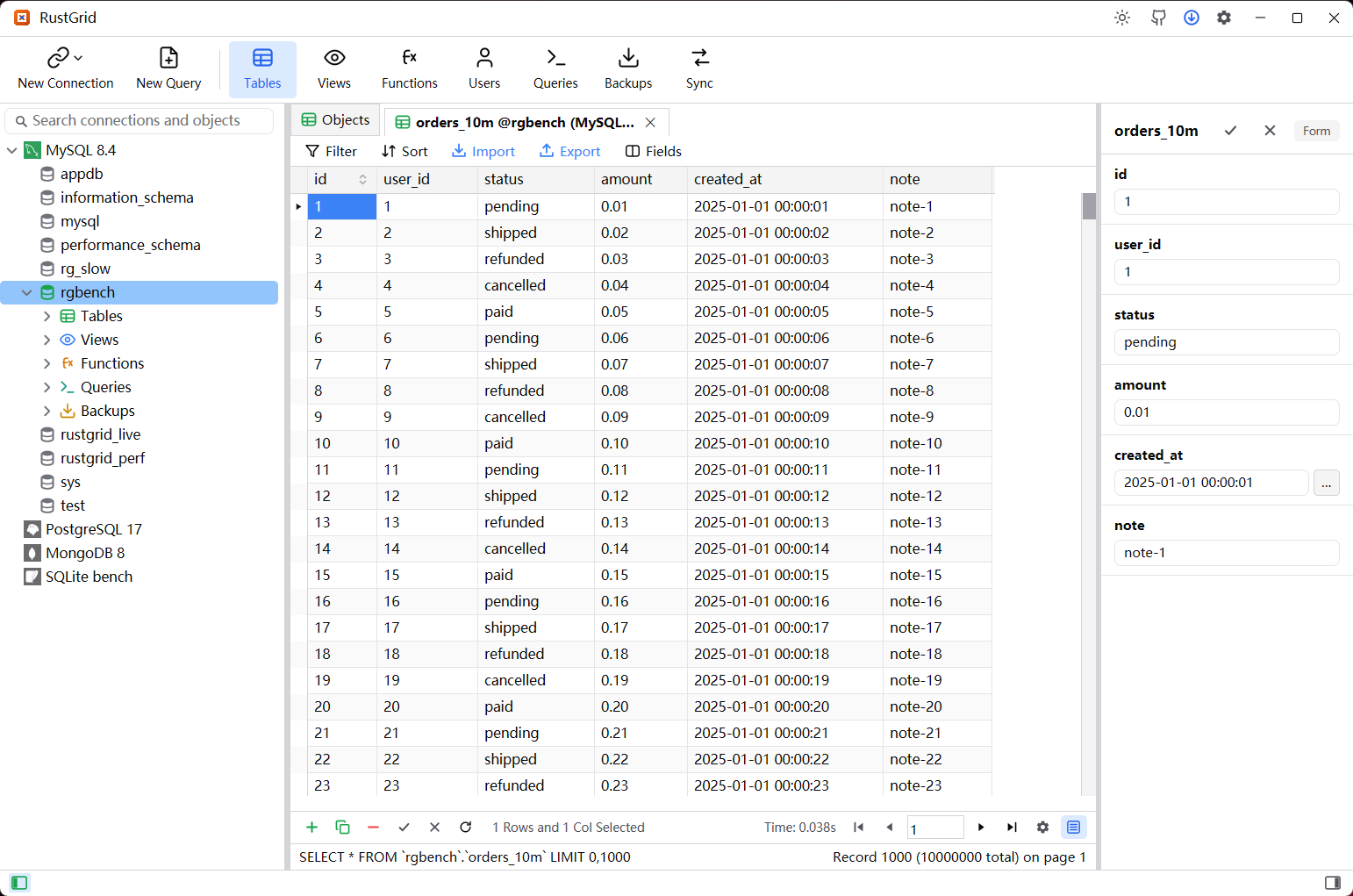
Open and page
- Double-click a table in the object list (or press
Enter/ use Open Table) to open it in a tab. The tab keeps its own page, filter and sort. - The default page is 1,000 rows. Limit records offers 100 to 10,000 rows, or no limit; the pager shows the total row count and jumps to a typed page.
- Paging is stable because the grid orders by the primary key. A table without a primary key falls back to the engine's natural order.
Read
- The header shows the field name; Settings → Grid can add the field's data type and comment underneath.
- JSON, long text and binary values get a short preview; the row form on the right shows the whole value, with a JSON format toggle and a date/time picker.
- Form (the icon at the right end of the footer) opens the selected row as a vertical form — useful for wide tables and long values.
Edit
- Double-click a cell, or press
Enter/F2, to edit.EnterandTabmove between cells; the edit is staged, not written yet. - Leaving the row with
Up/Downor a click on another row saves it when Settings → Grid → Save changes when leaving a row is on.Ctrl+Ssaves the staged changes immediately. - The toolbar's
+appends a record, Duplicate row copies the selected record under it, and the delete action removes selected rows. A new record shows column defaults,(Auto)or(Generated)values. - Unsaved changes are counted beside the save / discard buttons.
Escor Discard asks for confirmation before dropping them. - A table with no primary key is edited with all columns as the row identity; this still works, but a duplicate row is ambiguous.
Filter and sort
- Filter is a tree: conditions can be grouped with
AND/OR, and each node (including a whole group) has an enable checkbox. - Sort holds an ordered list of fields; drag a rule by its grip to change precedence. Apply runs the request, Clear removes it.
- Filters and sorts are sent to the engine, so paging and counts reflect the filtered result rather than the whole table.
Field layout
- Fields opens the field filter popup: search, toggle visibility, and drag fields into a new order. The edit is a draft until Apply; closing the popup discards it.
- The layout is remembered per connection, database and table, and a field added to the table later is appended rather than lost.
- Right-click a column header for Freeze column, Unfreeze, Unfreeze all, Hide column and Refresh. Frozen fields stay at the left while the rest scrolls.
Import and export
- Import opens the Import Wizard for Excel, CSV and TXT sources: pick the file, map source columns to destination fields, optionally create a table, then insert in batches.
- Export opens the Export Wizard for
.xlsx,.csv,.sqlor.txt. A grid's export first asks whether to export all records or the current N rows (the applied filter, sort and page). - A query result can export several result sets into one workbook; the table export writes one table per run.
Table actions
- Design Table opens the table designer with fields, indexes, foreign keys, unique keys, checks and options; its SQL Preview shows the script before saving.
- The object context menu also offers Rename (
F2), Empty Table, Truncate Table and Drop Table. Destructive actions go through the shared confirmation dialog. - The detailed object list shows the engine's table overview: rows, data length, index length, engine, collation, auto-increment and modification date.