Connections
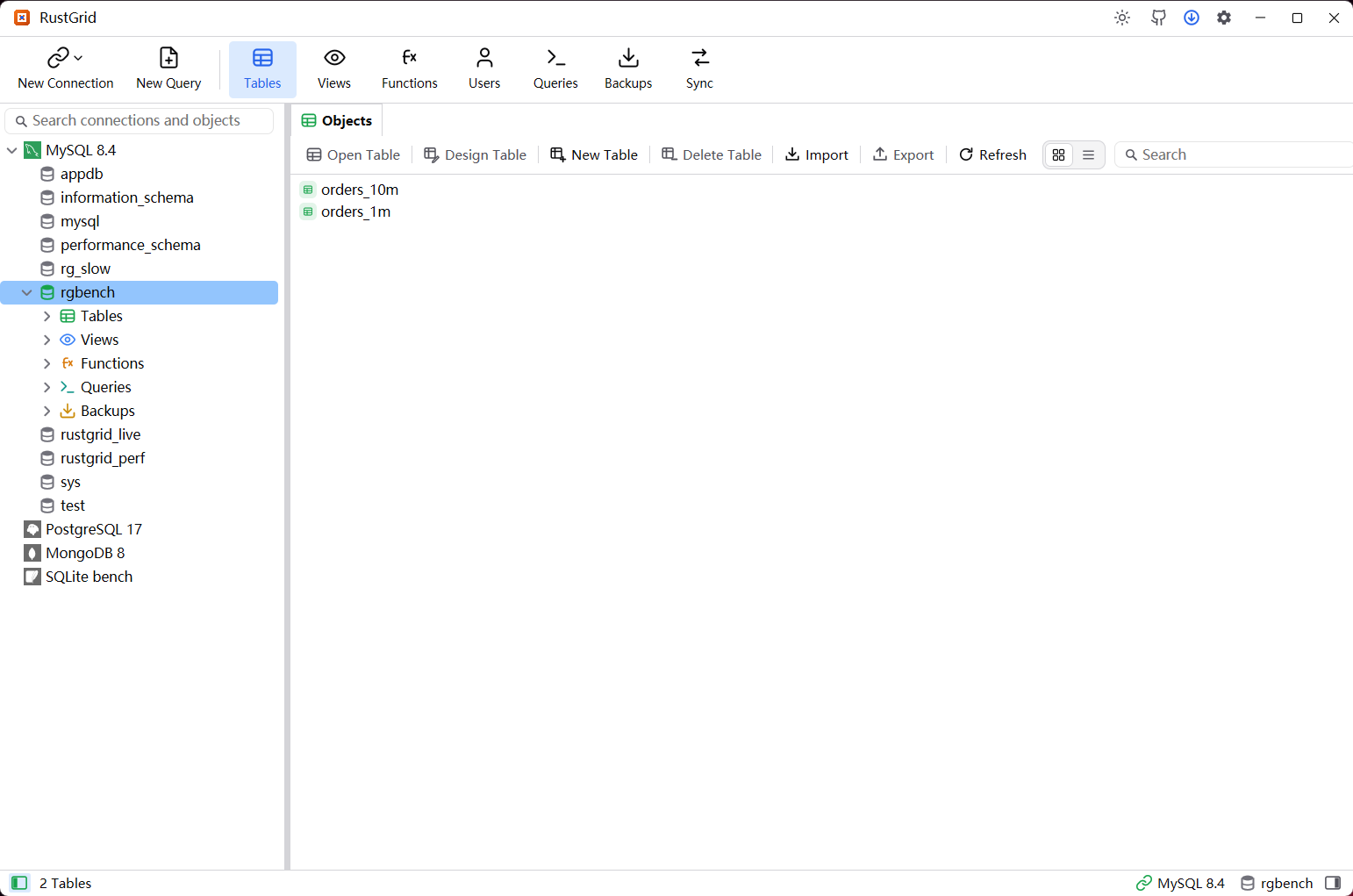
The connection tree on the left is where everything starts: connect, group and colour servers, then open databases and objects.
New connection
- Click New Connection and pick an engine.
- Fill in the host, port, user name and password. The database is optional.
- Test Connection first if you want to check the settings, then Save & Connect.
- Remember password keeps the password in the encrypted secret store; without it, RustGrid asks when the connection opens.
- Engine-specific fields sit on the General page: Oracle's service name, SID or TNS alias, SQL Server authentication and application name, SQLite's file path and SQLCipher mode, and the ODBC driver or connection string.
- TLS and SSH / HTTP / SOCKS5 tunnel have their own pages when enabled. Advanced holds timeouts, keep-alive, read-only mode and initialization SQL.
Organise the tree
- Groups: right-click the blank tree area, choose New Group, then drag connections into it. Groups nest, and a connection can be moved with Manage groups → Move to or removed with Exclude from group.
- Colours: a connection's context menu offers Colour → Red / Yellow / Green. The colour paints its whole subtree and every tab that belongs to it, so a production server stays visible.
- Search: filters groups, connections, databases, schemas and tables. Qualified names work too —
order.orders(schema.table) andsales.order.orders(database.schema.table).Down/Uphands the keyboard to the filtered results. - Refresh reloads databases and the objects behind them, so tables created outside RustGrid appear without reconnecting.
Import and export
- Import connections accepts a RustGrid
.rgcbundle, a Navicat.ncxfile or DBX JSON. A.rgcalso restores the groups and their order. - Export connections opens a small window: select connections, choose whether to include passwords, then save one
.rgc. Exported passwords are encrypted, never plain text.
Disconnect and delete
- Disconnect closes the server and any account or privilege windows opened against it. The profile stays in the tree.
- Delete removes the profile after confirmation. Stored passwords are removed with it.